
Projects organize the work you want to track. A project contains tasks, optional comments, hourly rates, members, expense categories, color settings, and financial thresholds. Good project setup makes daily tracking faster and reports easier to understand.
Create a project
- Open Projects.
- Choose Create new project.
- Enter a project name.
- Add an optional comment if the project needs internal context.
- If you already have a similar project, copy tasks from that project.
- Save the project.
After saving, the project appears in the project list and can be selected for time tracking.
Use project templates
When creating a project, you can copy tasks from an existing project. This is useful when your work follows a repeatable structure, for example consulting projects, legal matters, support retainers, or internal administration.
If expenses are enabled, you can also copy expense categories from the template project. This keeps project cost tracking consistent.
Understand task types
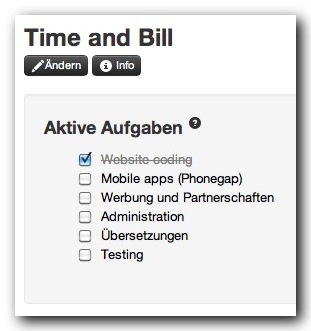
Time & Bill uses three task groups.
- Active tasks are available for normal time tracking.
- Inactive tasks remain in the project but are hidden from daily tracking.
- Common tasks stay available as ongoing work, such as meetings, support, calls, project management, or administration.
Keep the active task list short enough that daily tracking stays fast. Move old tasks to inactive instead of deleting them when they still have historical time entries.
Configure project rates
If you bill by the hour, set a project hourly rate. This gives Time & Bill enough information to calculate financial totals in project overviews and billing reports.
Use task-specific rates when different tasks have different values. A task rate can override the general project rate for more accurate billing and budget tracking.
Configure project settings
Project owners can change the project name, comment, color, activation status, hourly rate, expense categories, and financial thresholds. The project color helps identify the project visually. Deactivating a project removes it from normal active workflows while keeping historical data available for reports.
Deleting projects and tasks
Be careful with deletion. If tracked time exists, you may need to move entries to a replacement task before removing an old task. For projects with billing history, deactivation is often safer than deletion because historical reports stay intact.