
Budget controls connect tracked time with hourly rates. When rates and thresholds are configured, Time & Bill can show whether a project is within budget, approaching a warning limit, or already above a configured threshold.
What budget controls need
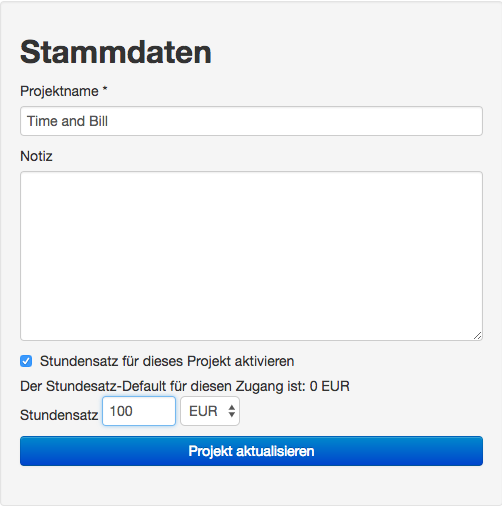
Budget calculations need tracked time and rates. Set a project hourly rate for a simple setup, or task-specific rates when different tasks should be valued differently.
If no rate exists, Time & Bill can still track time, but financial totals may be incomplete. Configure rates before relying on the financial overview for controlling or billing decisions.
Configure budget thresholds
- Open Projects.
- Select the project.
- Open Settings.
- Choose the currency.
- Enter a monthly budget limit if the project has a recurring monthly cap.
- Enter a yearly budget limit if the project has an annual cap.
- Enter a total budget limit if the project has a lifetime cap.
- Optionally enter a reference amount and reference factor.
- Enter the warning threshold percentage, for example 80.
- Save the settings.
Only project owners can change these thresholds.
Warning threshold percentage
The warning threshold controls when Time & Bill should warn before a limit is fully reached. For example, a warning threshold of 80 means that Time & Bill can warn when 80 percent of a configured budget has been used.
This helps project owners react before the budget is exceeded.
Where warnings appear
Budget warnings can appear in several places:
- Project list
- Project financial overview
- Dashboard warning area
- Financial Overview report
Warnings may refer to monthly budget, yearly budget, total budget, or reference threshold. Review the warning type before deciding what to adjust.
Financial overview
The project financial overview shows current billable totals for the project. It summarizes values for the current month, current year, and total project lifetime. It also lists active warnings when thresholds are reached or exceeded.
Budget review workflow
For projects with strict financial limits, review budgets regularly.
- Check whether new time was booked since the last review.
- Review the project financial overview.
- Open the Financial Overview report for a broader view.
- Compare current totals against the project agreement.
- Adjust future work, rates, or budget limits only after the project owner has reviewed the data.
Common mistakes
- Tracking time before setting rates and then expecting complete financial totals.
- Setting only a monthly limit when the project also has a total cap.
- Ignoring warnings until the budget is exceeded.
- Using task-specific rates inconsistently across similar tasks.
- Deleting historical tasks instead of preserving them for reports.