
The dashboard is the first page most users work with each day. It shows one selected day at a time and gives you the controls you need to add work, correct existing entries, record absences, and review totals before the day is finished.
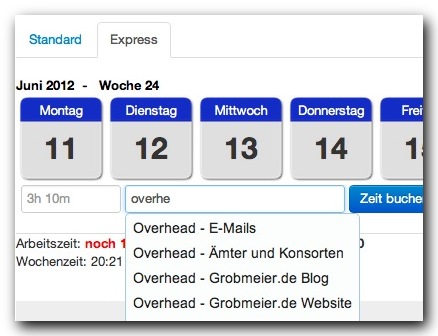
What the dashboard shows
The dashboard combines daily and weekly information. The selected day is shown with its tracked entries, while the surrounding week is used for weekly totals and navigation. Depending on your account setup, you may also see absences, stopwatches, project warnings, overtime, target time, breaks, and week totals.
Use the previous day, today, and next day controls to move through your work history. This is useful when you forgot to book yesterday’s work or need to correct a time entry after reviewing a customer request.
Add a time entry
Use a standard time entry when you know the exact start and end time.
- Open the dashboard.
- Select the day you want to edit.
- Choose to add a time entry.
- Enter start time and end time.
- Select the project and task.
- Add a note if the entry needs context for later reporting.
- Save the entry.
After saving, the entry appears in the tracked entries list and the daily totals are updated.
Edit or delete an entry
Open an existing entry when you need to correct the time range, move the work to another task, or add a clearer note. Delete an entry only when the booked work should no longer appear in reports. If the entry belongs to customer billing, correcting it is usually better than deleting it without review.
Add an absence
Absences are tracked separately from project work. Use them for break, vacation, sick leave, and public holidays. Absence entries help the dashboard distinguish project time from other workday-relevant time.
Use project warnings
When budget thresholds are configured for a project, dashboard warnings can show when work is approaching or exceeding monthly, yearly, total, or reference thresholds. Treat these warnings as an early signal to review the project budget before more time is booked.
Daily review checklist
- The selected day is correct.
- Every work block has a project and task.
- Notes are clear enough for future reporting.
- Absences are entered separately from project time.
- The daily total and weekly total look plausible.
- Any project warnings have been reviewed.