
HumbleBee can import Time & Bill exports. This is useful when you want a local copy of your time tracking data or when you want to keep using a simpler local-first tool.
Before you import
Create a backup of the HumbleBee database you are importing into. If you are testing the migration, create a new database first and import into that.
The safest workflow is:
- Create or choose a HumbleBee database.
- Back it up.
- Import the Time & Bill export.
- Review projects, tasks, and time entries.
- Only then use the database for daily work.
Import with the CLI
humblebee import timeandbill-export.json
Import with the GUI
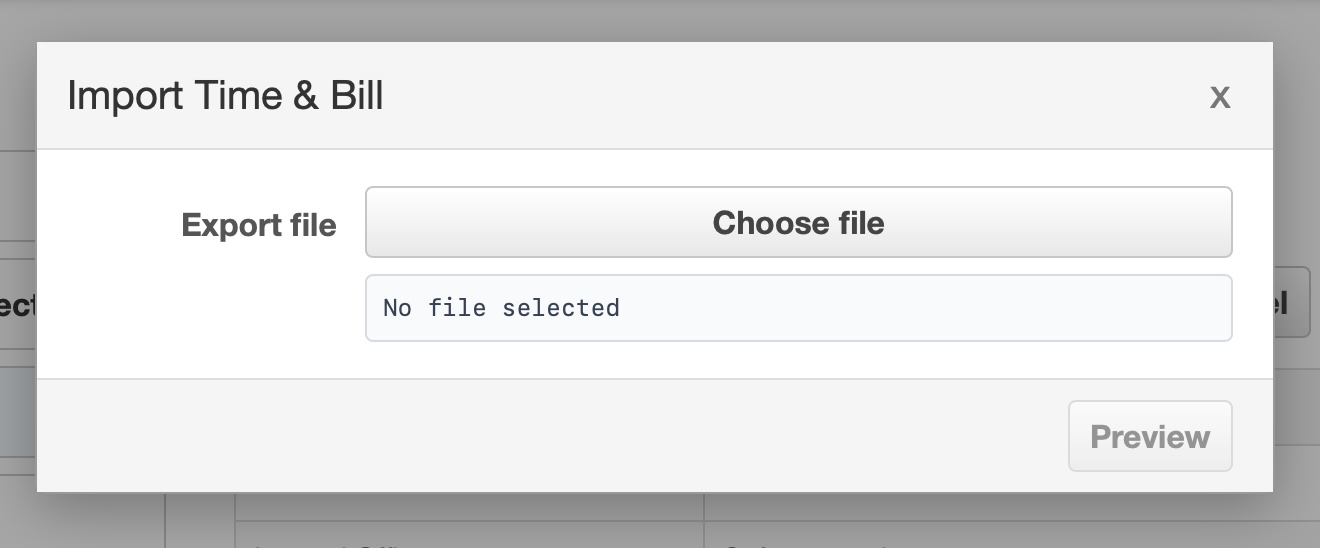
Use the import button in the top right of the HumbleBee GUI. The import flow previews the result before writing data.
Conflict handling
HumbleBee does not overwrite existing time entries during import. If an imported time entry conflicts with an existing local time entry, the import reports the conflict and skips the conflicting time.
This means you can safely test an import without destroying existing local work. Still, a backup is recommended before importing real data.
What to review after import
- Projects and tasks are grouped in the project view.
- Completed tasks should stay hidden from stopwatch selection.
- Special Time & Bill items, such as absence-like entries, should not pollute the stopwatch list.
- Reports should show the expected totals for a known month.
What may not map one-to-one
Time & Bill is a hosted team product. HumbleBee is a local-first solo tool. Team permissions, hosted account state, mobile-specific behavior, and server-side billing workflows are not the goal of the HumbleBee import.