
HumbleBee stores data in a local SQLite database. There is no required cloud account for the core workflow.
Default database path
By default, HumbleBee writes to:
~/.humblebee/humblebee.db
You can override the base directory with HUMBLEBEE_HOME:
HUMBLEBEE_HOME="$PWD/.humblebee-test" humblebee doctor
With that variable, the database path becomes:
$HUMBLEBEE_HOME/humblebee.db
Back up the database
Quit the GUI and stop any running timer before copying the database.
cp ~/.humblebee/humblebee.db ~/humblebee-backup.db
For regular backups, include the HumbleBee database in your normal computer backup system.
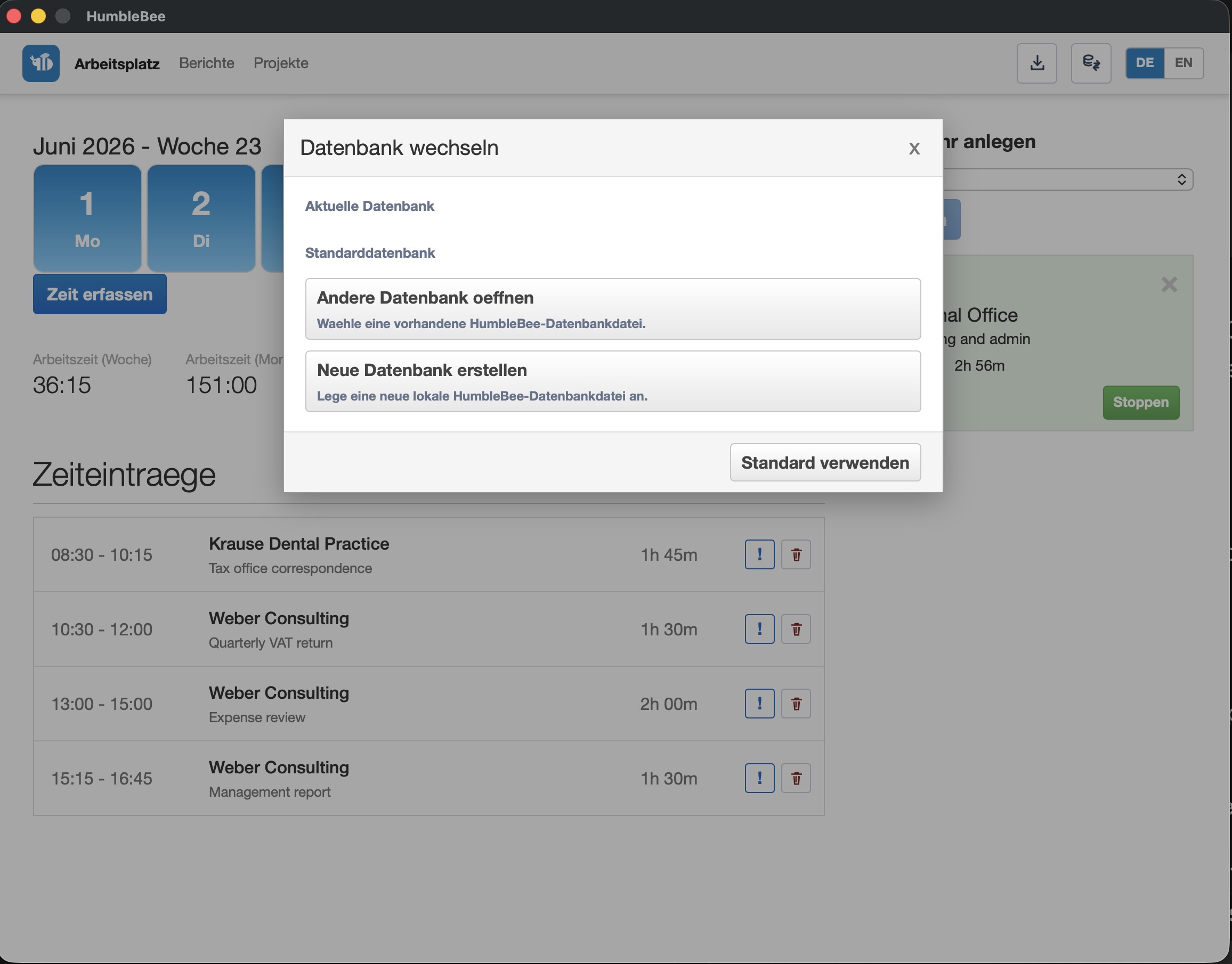
Switch databases in the GUI
The GUI includes database switching. Use it when you want to open a different local database file or create a new local workspace.
Switch databases for CLI commands
Use HUMBLEBEE_HOME when you want a separate CLI workspace:
mkdir -p "$HOME/humblebee-client-a"
HUMBLEBEE_HOME="$HOME/humblebee-client-a" humblebee init
HUMBLEBEE_HOME="$HOME/humblebee-client-a" humblebee report
If the database is locked
A locked SQLite database usually means another process still has the file open, a previous app run did not close cleanly, or the database is on storage with unusual locking behavior.
Try this order:
- Quit all HumbleBee windows and terminals running HumbleBee.
- Wait a few seconds and open HumbleBee again.
- Run
humblebee doctor. - Back up the database before trying repair actions.
Avoid putting the active database directly in a sync folder that may lock or rewrite files while HumbleBee is running.